


Go Fly Drone Remote Controller
4.5383.00 Reviews
App Specs
- Version
- 3.0.4
- Updated On
- License
- Free
- Downloads
- 1,000,000+
- Developer
- LeoStudio Global Ltd.
- Categories
- Photography
- Platform
- Android
Screenshots
 Analysis by AppCompare
When I’m choosing a drone app, I want more than a screen full of controls: I want a clear way to connect, understand what the camera is seeing, and make sensible decisions before takeoff. Go Fly Drone Remote Controller is a photography app from LeoStudio Global Ltd. aimed at flying and operating a drone from a mobile device. It is free to download, with optional in-app purchases, and its appeal is straightforward: put flight-related tools in one place rather than relying on a confusing setup.
That focus also sets the right expectation. This is a companion for drone use, not a general photo editor or a replacement for learning safe flying habits. I’d consider it most useful to someone whose aircraft works with the app and who wants a mobile control option. Before planning a trip around it, I’d check compatibility with my specific drone and phone, then test the connection in an open, familiar area. A promising feature list matters less than a reliable pairing with the aircraft I actually own.
Getting Started with Go Fly Drone Remote Controller
Kicking things off, the installation process was a breeze. I found the app on both the App Store and Google Play, and within minutes, it was ready to go on my device. The interface is sleek and modern, which was a pleasant surprise. You know how some apps look like they were designed in the early 2000s? Yeah, this isn’t one of them. It’s got a crisp, clean design that’s easy on the eyes.
Once you open the app, you’re greeted with a straightforward dashboard. The menus are intuitive, and even if you’re a newbie, you’ll find your way around without much fuss. I appreciate how the app doesn’t overwhelm you with options right off the bat. Instead, it guides you step-by-step, making sure you’re comfortable before taking off. Literally.
Features That Make You Go “Wow”
So, what makes the Go Fly Drone Remote Controller stand out in a sea of drone apps? Let’s break it down:
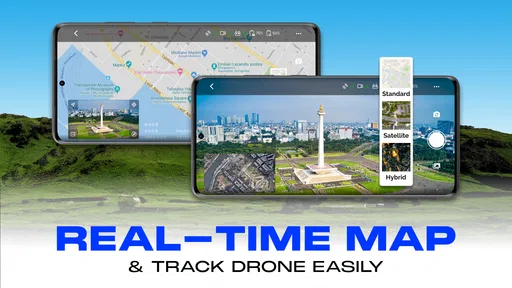
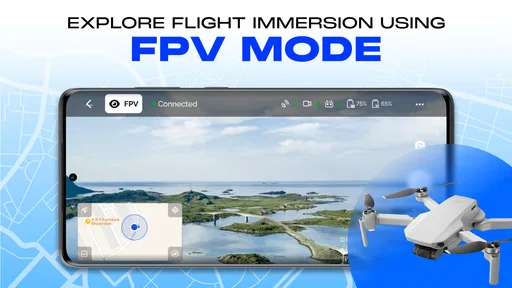
- Real-time Video Streaming: This feature is a game-changer. You get a live feed from your drone straight to your device. The video quality is surprisingly good, and there’s minimal lag, which is crucial when you’re trying to navigate through narrow spaces.
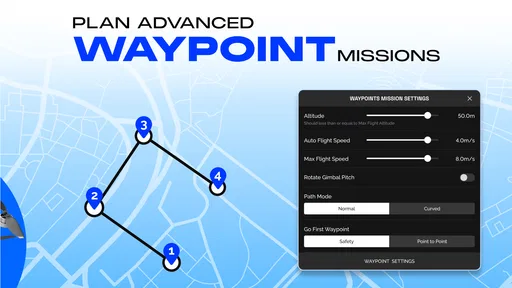
- Waypoint Navigation: Planning a flight path has never been easier. Just tap on the map to set waypoints, and your drone will follow the path like a pro. It’s perfect for capturing those cinematic shots without needing to constantly adjust the controls.
- Gesture Control: Feeling like a Jedi? With gesture control, you can command your drone with a wave of your hand. It’s not just cool; it’s genuinely useful for those times when you need to make quick adjustments without fiddling with the app.
Those tools are most helpful when I know what I want to capture before lifting off. For example, if I’m taking a few overhead photos of a garden, I can think about the framing and route on the ground first, rather than improvising while the drone is airborne. A planned route can help keep attention on composition, but I’d still keep the aircraft in sight and be ready to take manual control. Automation is a convenience, not a reason to stop supervising a flight.
For a short outing, I’d also separate the job into two stages: first confirm the live view and controls in a safe open spot, then move on to the shot I came for. That small habit helps distinguish a camera or framing problem from a connection or control problem. It is especially useful for a first flight with a new setup, when trying every tool at once can make it hard to tell what is working.
Worth Reading Before You Choose

EA SPORTS FC Mobile 26 Is a Bigger Football Game, but It Takes Time

Flipboard Shows What News Apps Must Do Beyond the Feed

Switching to Android Auto Means Rethinking Your Driving Routine

Google Calendar Makes a Crowded Week Easier to Manage

Ludo King Makes the Most of the Minutes Between Plans

Baby Panda World Brings Quick Play to Modern Phones, but Its Game Library Feels Busy
Flying Experience and User Interface
Alright, now on to the actual flying part. Connecting your drone to the app is as simple as pie. The connection is stable, and I didn’t experience any dropouts during my flights. That’s a big plus in my book because there’s nothing more frustrating than losing control mid-flight.
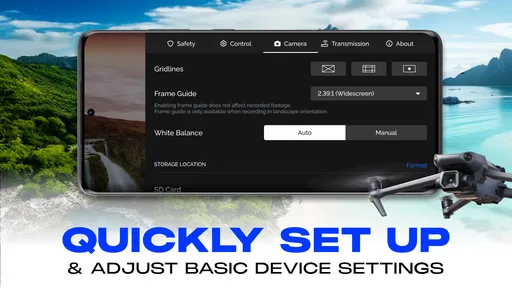
The controls are responsive and surprisingly user-friendly. Whether you’re a seasoned pilot or still finding your wings, the Go Fly Drone Remote Controller makes it easy to maneuver your drone with precision. The app offers customizable control settings, so you can tweak them to your liking. Want more sensitivity? You got it. Prefer a slower response? No problem.
One practical trade-off with any phone-based control setup is that the screen is doing several jobs at once: it shows the camera view, presents controls, and may be used to plan a route. I’d take a moment before each flight to set up the view and choose control settings while standing still. That is easier than adjusting sensitivity in the middle of a shot, when a small input can change the framing or direction more than intended.
It also helps to treat the live image as a composition aid rather than the whole picture of what is happening. A screen can make it tempting to focus only on the scene being filmed. I’d keep looking up at the aircraft and its surroundings, especially when moving near trees, buildings, or people. The app can make control more convenient, but good visibility and judgement still come from the pilot.
Safety First
One thing I absolutely love is the built-in safety features. The app includes a “Return to Home” function, which is a lifesaver if your drone goes out of range or the battery starts running low. Just tap the button, and your drone will safely return to its starting point. Phew!
There’s also a geofencing feature that prevents your drone from flying into restricted areas. This is especially handy if you’re flying near airports or other no-fly zones. It’s reassuring to know that the app has your back in ensuring a safe flying experience.
I would still check the intended return point before takeoff and avoid assuming that an automated return makes every location safe. The route home can be affected by obstacles and the space around the aircraft, so I’d use the function as a backup rather than a substitute for planning. In the same way, a boundary tool is useful, but I would not treat it as a complete guide to local flight rules. Before launching, I’d check where I’m allowed to fly and choose a clear place to land.
Who It Suits, and When I’d Choose Something Else
I can see this app fitting a casual drone owner who wants camera-oriented control without spending the whole outing learning a complicated interface. It may also suit someone who already uses a compatible aircraft and wants to try mapped routes or gesture input for a particular shot. A beginner can benefit from a guided-looking layout, but should still learn basic control and safety on a simple, open flight before relying on automated options.
By contrast, I’d be cautious about making it my only tool if I fly professionally, depend on a specialized workflow, or need a particular camera or aircraft feature to be guaranteed. In those cases, the manufacturer’s own controller software or a dedicated physical controller may be the better choice, especially if it is the option explicitly recommended for the drone. A phone app’s convenience does not automatically make it the best fit for every model or demanding assignment.
Compared with the usual alternatives in drone photography, the main choice is often between a phone-based controller app, the drone maker’s own companion app, and a physical controller paired with a mobile screen. This app’s draw is the idea of bringing flight and camera interaction together on a phone. A manufacturer’s app may be preferable when exact model support and an established workflow are the priority; physical controls may feel more dependable to someone who dislikes touch controls. I’d choose based on the aircraft first, then on how I prefer to fly.
What the Current Version Means for Existing Users
The app’s current version is 2.3.3, and it was released on March 18, 2024. That gives existing users a concrete version to compare with what is installed on their device, but a version number alone does not tell me which features changed between releases. I would avoid assuming that an update altered flight behavior or added a particular tool unless the update notes say so.
For someone who already has the app, the useful approach is to check the installed version before a planned flight and allow time to test after any update. If the controls or layout feel different, a brief practice session in a safe open area is wiser than discovering that during a carefully planned photo opportunity. The app has attracted over a million installs and holds an average rating of 4.2 from around 5,500 ratings, which suggests a sizeable audience, though those figures can’t tell me whether it will work with a particular drone.
It is available at no charge to install and is rated for everyone, while optional in-app purchases range from $0.99 to $59.99 per item. I’d look carefully at any purchase screen and decide whether the item solves a real need before paying. If I only need basic control for an occasional flight, I would first see whether the free experience covers that use rather than assuming an add-on is essential.
Small Checks That Make a Flight Smoother
For a photography session, I’d prepare the shot on the ground: identify the subject, pick a safe position from which to launch, and decide on a simple route that avoids needless movement. If using waypoints, I’d begin with a short, uncomplicated path rather than designing an elaborate sequence on the phone. That makes it easier to judge whether the route is useful and gives me a clear chance to stop or change course if the scene is busier than expected.
I’d also keep the first test flight deliberately ordinary. Pair the app, check that the camera view appears, make a few gentle control inputs, and confirm that I can find the safety controls without searching. This is a more revealing test than opening the app indoors and assuming the setup is ready. The key question is not only whether the interface looks clear, but whether the app and drone respond predictably together in the conditions where I plan to fly.
A realistic example is taking the drone to an open field to photograph a family picnic area from above. I’d first check that the location is suitable, keep away from people, and make a short test flight before attempting a composed pass. The live image can help me judge the framing, while a simple waypoint plan may reduce repeated manual corrections. If the connection feels uncertain or the surroundings become crowded, I’d skip the planned shot and land rather than pushing on because the app offers automated tools.
What I’d Want to See Before Relying on It
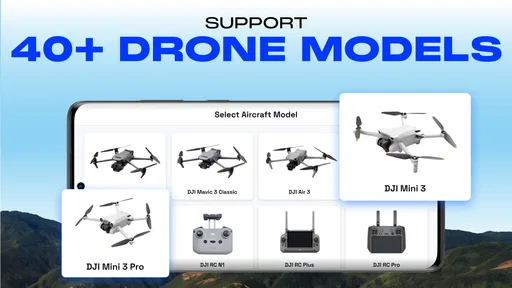
The biggest question for a prospective user is compatibility: does the app support the exact drone and phone combination they intend to use? The name and description point toward Mavic Mini and Air models, but I would still confirm the specific model and control method before buying a drone or planning a trip around the app. Compatibility is more important than an attractive dashboard; a polished interface cannot compensate for a pairing that does not work with your aircraft.
I’d also want to know how each feature behaves on my own setup. A live feed that feels responsive in one situation may not be equally useful in every environment, and gesture input is not automatically better than buttons when precision matters. I’d test each option separately, in a place where a mistake is low-risk, and keep the control method I can use most consistently. That is a more practical measure of value than simply counting the number of features.
For a free app with optional purchases, the sensible decision is to try the basic workflow before spending. If I can connect, see the camera image, and control the drone as expected, I can then decide whether an in-app item is worth considering. If my priority is advanced, model-specific reliability, I’d compare it with the drone maker’s recommended software before committing to a setup.
Final Thoughts
So, is the Go Fly Drone Remote Controller app worth downloading? Absolutely. It’s packed with features that enhance your flying experience, whether you’re capturing stunning aerial shots or just having fun. The user-friendly interface and robust safety features make it suitable for pilots of all skill levels.
In a world where drone apps can be hit or miss, this one hits all the right notes. So, if you’re ready to take your drone adventures to the next level, give this app a whirl. You won’t be disappointed!
My recommendation comes with one important condition: treat it as a tool to test with your own aircraft, not as a promise that every setup will behave identically. For a compatible drone owner who wants a phone-centered way to frame shots and explore route planning, it looks like an appealing place to start. For a pilot who needs a highly specific professional workflow or prefers dedicated physical controls, the manufacturer’s own option may be the more comfortable choice.
Ultimately, I’d download it when I had a clear use for its mobile control and camera approach, then test the essentials before trusting it with a planned shoot. That keeps expectations grounded while leaving room to enjoy what it does well. If the pairing and controls suit your drone, it can make casual aerial photography feel more approachable; if they don’t, choosing a better-matched controller app is the sensible call.
Pros
- User-friendly interface for easy navigation.
- Real-time video streaming with low latency.
- Customizable control settings for precision.
- Strong connectivity even at long distances.
- Compatible with various drone models.
Cons
- Requires a stable internet connection.
- Limited features in the free version.
- In-app purchases can be costly.
- Occasional lag in video feed.
- Battery drain can be significant.
FAQs for Go Fly Drone Remote Controller
What are the key features of the Go Fly Drone Remote Controller app?
The Go Fly Drone Remote Controller app offers a user-friendly interface, real-time video streaming, customizable control settings, and GPS integration for precise navigation. It supports multiple drone models and provides safety features such as return-to-home and obstacle detection. Additionally, it includes a flight log to track past flights and performance.
Is the Go Fly Drone Remote Controller app compatible with all drones?
While the app is designed to work with a variety of popular drone models, compatibility depends on the specific drone's technology and requirements. It's essential to check the app's specifications and compatibility list on the developer's website or app store listing to ensure it supports your particular drone model.
What are the system requirements for the Go Fly Drone Remote Controller app?
The app requires a smartphone or tablet with Android 6.0 or iOS 11.0 and above. A stable internet connection is recommended for live streaming and GPS functions. Additionally, the device should have adequate processing power and RAM to handle real-time video and flight data without lag.
How does the Go Fly Drone Remote Controller app enhance drone flying experience?
The app enhances the flying experience by providing intuitive touch controls, customizable settings, and a seamless interface that makes navigating easier. The real-time video feed and GPS mapping allow users to fly with precision and confidence. Safety features like return-to-home and obstacle alerts add an extra layer of protection during flights.
Are there any in-app purchases or subscriptions required for the Go Fly Drone Remote Controller app?
The app offers a basic version with core functionalities for free. However, there are optional in-app purchases or subscriptions available that unlock advanced features such as enhanced video quality, additional telemetry data, and premium support services. Users can choose these based on their flying needs and preferences.


